Notifications
The Notifications page is used to manage and send mobile notifications for the JudoTV mobile app.
Send Manual Custom Notification
Custom notifications can be sent via the "Send Notification" form.
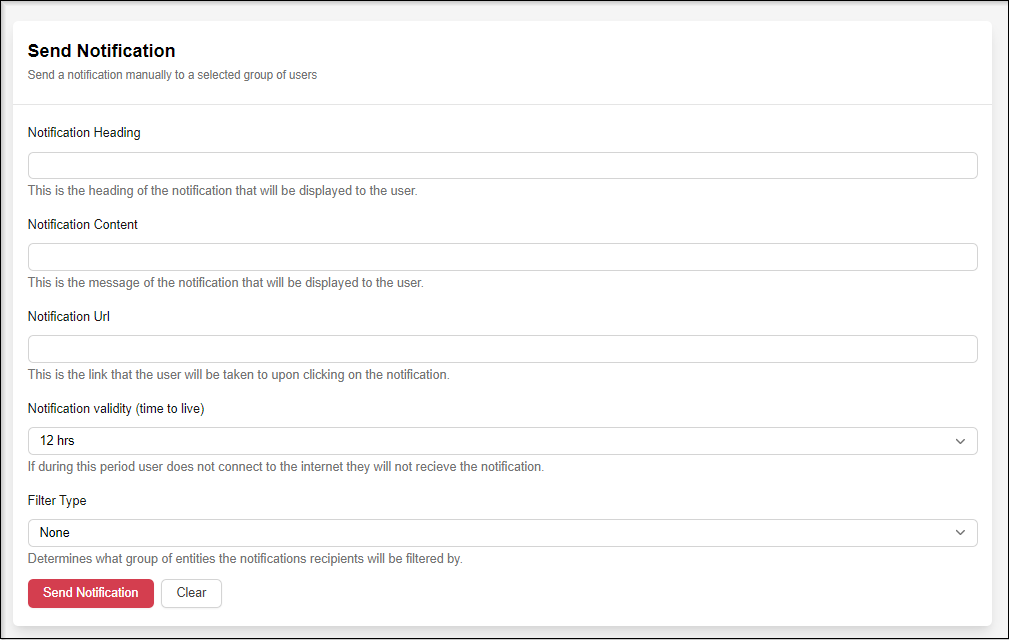
Mobile notifications must contain:
- Notification Heading (the text displayed as the heading)
- Notification Content (the text displayed as the body of the notification)
- Notification URL (the link opened in the app when the notification is clicked)
- Notification Validity (the duration that an undismissed notification remains on the mobile device)
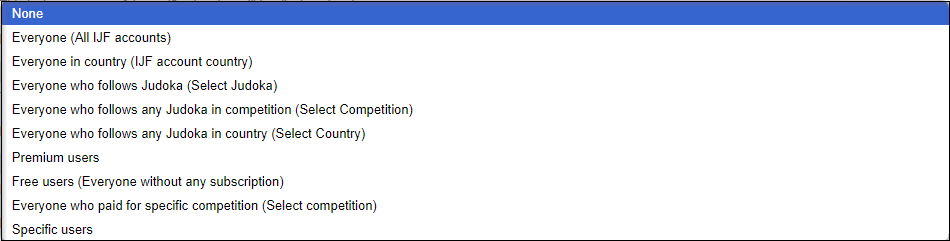
- Filter Type (to filter specific users of the JudoTV app)
Filters:
Manage Automatic Notifications
This section allows you to manage all automatic notifications running in the JudoTV App.
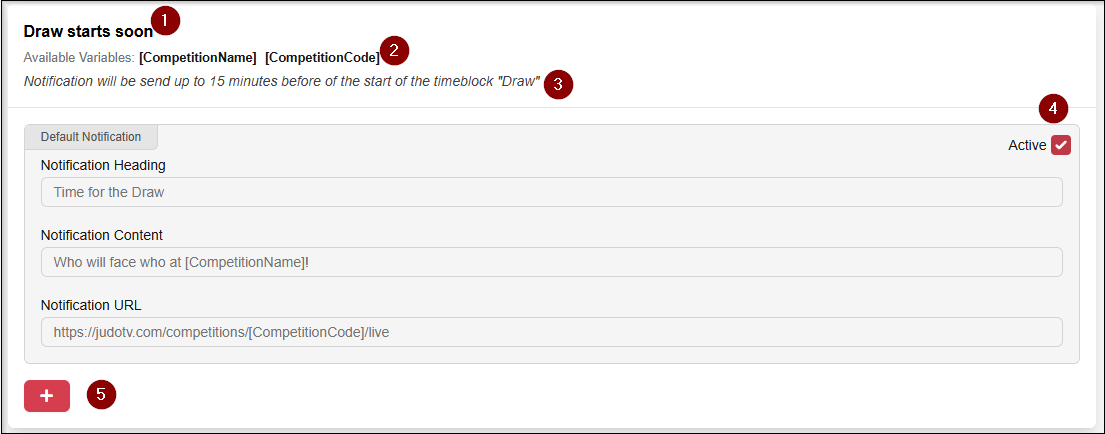
Automatic notifications are organized within forms, and each notification includes the following elements:
- Title
- Available Variables
- Timing or Triggers for sending the notification
- A toggle to Turn ON/OFF the notification
- An option to Add Another Version of the same notification (Custom Automatic Notification)
Edit Automatic Notifications
There are two types of automatic notifications:
- Default Automatic Notification
- Custom Automatic Notification
Default Automatic Notifications
Default automatic notifications CANNOT be edited or deleted. You can only toggle them ON or OFF using the "Active" checkbox.
Custom Automatic Notifications
Custom automatic notifications can be added by clicking the red + button. The following details must be provided:
- Notification Heading
- Notification Content
- Notification URL
Custom automatic notifications can also be deleted if no longer needed.

Custom notifications can either replace default notifications or work alongside them.
- If the Default Notification = Not Active and Custom Notification = Active, only the custom notification will be sent.
- If both Default Notification = Active and Custom Notification = Active, the system will randomly select one notification (default or custom) for each user. Each subscribed user will receive a notification chosen randomly from the pool of active default and custom notifications.
Using Variables in Automatic Notifications
Variables can be included in automatic notifications to customize their content. Variables are defined using the format "[VariableName]". Each competition also has specific, hardcoded variables connected to its notification trigger. These are described in the form for each automatic notification.
Good example
Text: Draw at the [CompetitionName] coming up!
Return: Draw at the Abu Dhabi Grand Slam 2024 coming up!
Bad example
Text: Draw at the [competitionname] coming up!
Return: Draw at the [competitionname] coming up!
By correctly formatting variables, you can ensure that notifications are both accurate and engaging.
Aditional Automatic Notifications with different triggers
Automatic notifications can be assigned directly to the Time Blocks and can use custom defined triggers. For more you can read HERE